The board
Open a play from Plays. If you’ve used Shopify Flow, this will feel familiar: steps on a canvas, read from left to right, splitting wherever an answer does.
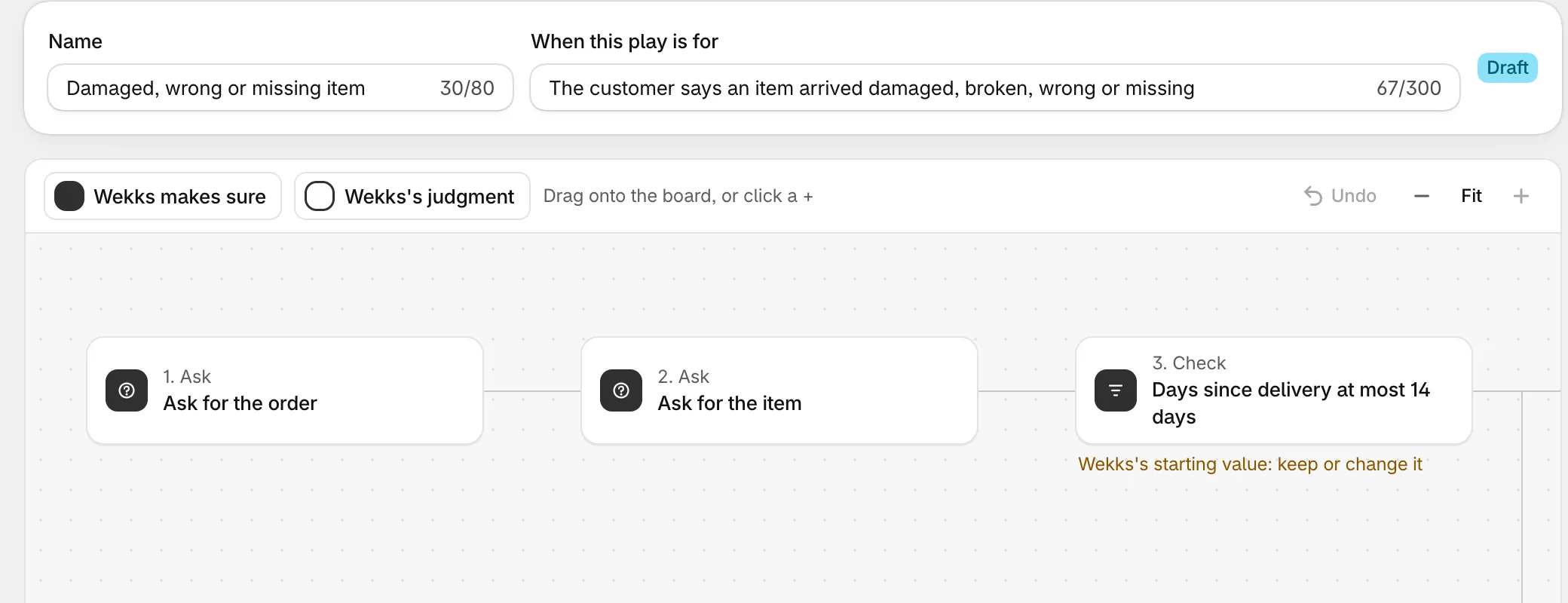
The two marks
Every step has one of two marks.
Solid: Wekks makes sure. Questions, checks and actions. These run the same way every time, in code.
Outlined: Wekks's judgment. It reads the message and decides, or chooses its words. Your wording sets the limits.
| Step | Mark | What it does | Example |
|---|---|---|---|
| Ask | Solid | Makes sure Wekks has something. If not, the reply asks and the ticket waits. | The order, the item, a photo, the postcode, an address, a reason |
| Check | Solid | Tests a fact from your store’s records, and splits into yes and no. | Days since delivery at most 14 |
| Do | Solid | Takes an action. | Refund, send the items again, cancel the order, hand it to the team |
| Judge | Outlined | Reads the message and picks one of the answers you wrote. | “What went wrong?” Damaged, wrong, missing |
| Say | Outlined | Something the reply must include. | “They can keep the damaged item.” |
| Never say | Outlined | Something the reply must never include. | Retention offers |
Changing a step
Select a step and its settings open on the right.
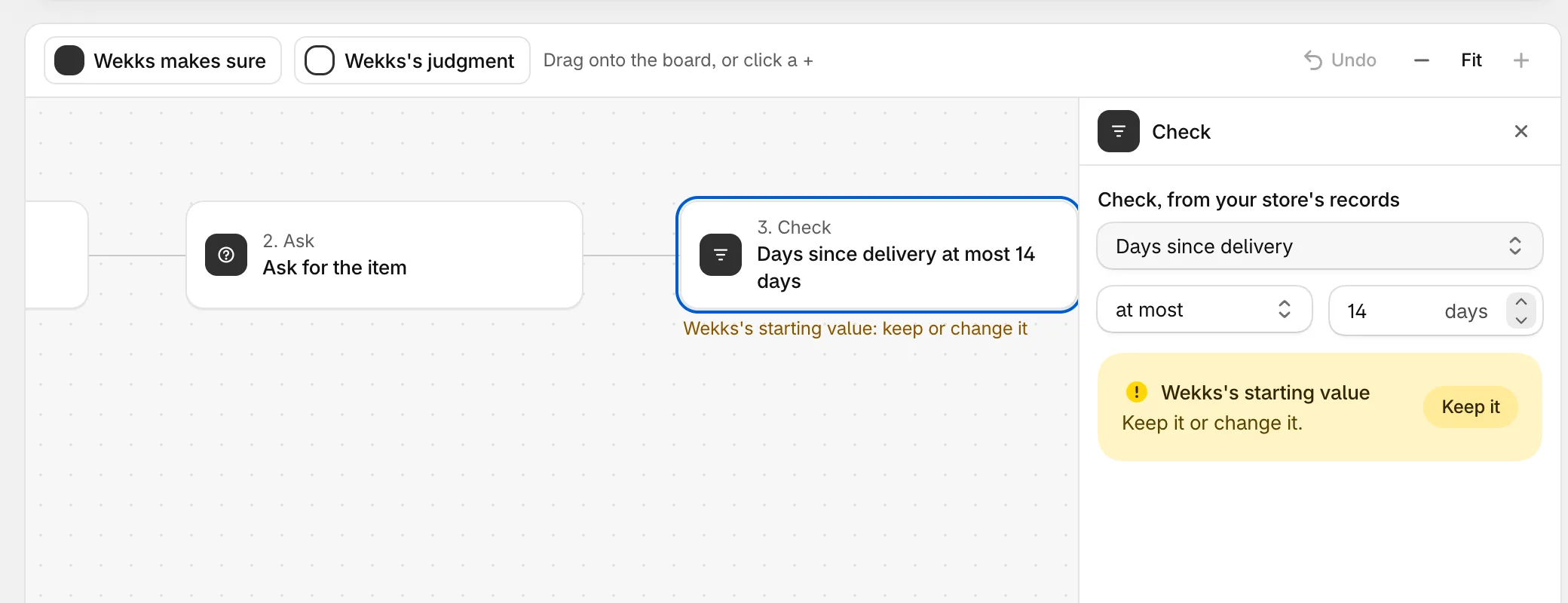
Each number shows where it came from: your policy (with the quote), your own change, or Wekks’s starting value. For a starting value, select Keep it or change the number.
Adding a step
Select a + on the board to see all six kinds of step, or drag a mark from the toolbar onto the board to see that mark’s three.
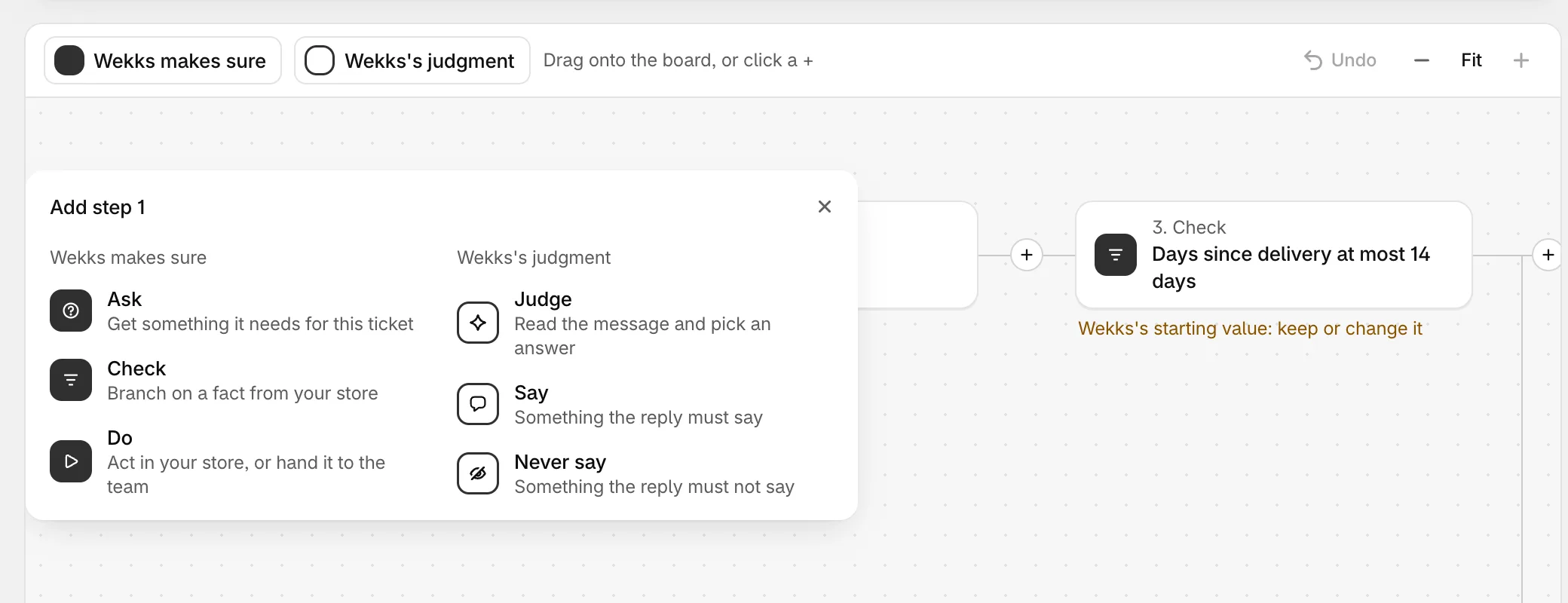
Use Undo if you change your mind, and the zoom buttons or Fit to see the whole play.
Saving
When you change anything, Shopify’s save bar appears at the top. Save or discard there, like any other page in your admin.
Before saving, Wekks replays the change on recent tickets. If it would have changed any decisions, This changes decisions shows you which, and you choose Save anyway or Keep editing.
Every save is a new version of your plays, and each ticket records the version it used, so old tickets still show the steps they really took.
Pinned examples
When a ticket went exactly right, select Pin as right on it and give it a name. From then on, every change to that play is checked against it. If a change would decide it differently, Wekks stops and shows you.
Your pins are listed at the bottom of the play.
Creating a play
Select Create play on the Plays page. The first time, a short intro explains the marks.
- Name the play.
- Write When this play is for, in a sentence: “The customer asks about gift wrapping”.
- Add a few examples under Customers write, in your customers’ words. This is how Wekks recognises the situation.
- Add your steps.
A new play starts in Watch, like all of them.
What you can’t change
- Locked steps. Some steps are kept by Wekks, such as confirming the postcode in Change the shipping address. They can’t be moved, changed or removed.
- Safety plays. You can open them, and raise their mode, but their key steps stay.
To remove one of your plays, select Remove play. Its tickets then go to When no play fits.
Only the store’s owner can edit plays. Teammates can open them and read them, and can flag what went wrong on a ticket.